To resize the whole page, hold Ctrl or ⌘ and press + or −, or scroll the mouse wheel — 0 resets to 100%.
BizBarrel Help & Guide
Your Space. Your Way.
BizBarrel is organized around modes inside the main app, Forge (forge.html). Each mode focuses on a specific type of work. BB-Lite is the default Forge view (card home, then a place). Classic is the original mode-bar cockpit — switch to it from the BB-Lite landing page. Theme and display stay in the look cluster. Forums, blogs, and games are their own pages — they do not use skins. Public Forums live on a separate page for community reading, voting, and replies when you’re signed in.
How we protect data: Data Safety.
To report a problem, use Feedback
(signed-in members; the form emails the BizBarrel team).
Dismiss the illustrated Welcome to Forge card when you’re ready. The first time you open Today, Archive, Research, Photos, Private, or Shared, a graphic mode card may appear. Guests remember those dismissals in this browser only.
Open Forge. You land on BB-Lite: tap a title (Today, Recent, Your Stuff, Your Writing) to open its places. Today offers Calendar, Journal, and Tasks. Your Writing has Your blogs and Private Forums.
Add a note in Archive, or browse Public Forums / Your People for community activity.
Use Inspect (Classic mode bar) or the feature guides on the cards below when you want detail. From BB-Lite home, Switch to Classic Skin restores the original mode bar.
Classic and BB-Lite (skins)
A skin is how Forge interacts with you — not a color theme, and not a Display preset. Theme (light / soft / dark / glass) and Display (Standard / High contrast / Comfort) still stack on top of either skin.
BB-Lite (default) — card home. The toolbar keeps Theme / Display, sticky notes, and Messages (not Classic mode nav, Help, or the Organizer calendar). Open a title, then a place. On Today, Journal and Tasks each have Maximize to fill the canvas (Restore or Escape returns the calendar split). On a phone, Today opens on the calendar only; Journal and Tasks are their own screens with Back to calendar. From the landing bar, Switch to Classic Skin. Inside a place, Back to Menu returns to the cards.
Classic — original top mode bar and three-pane tree / editor / details. From the mode bar, Switch to BB-Lite restores the card home.
Signed in, your skin is remembered on your account. Guests start on BB-Lite every new visit (a Classic switch lasts only for that tab).
Skins do not appear on Forums, Blogs, Games, or landing. Theme and Display still stack on both skins.
Signing in, Forge, and saving data
Sign in from the home page so your archives, research, and forum activity stay synced to your account. Creating an account requires first name, last name, email, and password; an alias is optional.
Forge is your main workspace at forge.html, whether you’re signed in or just exploring. Without an account, you’ll get a trial-style experience where your data stays in the browser until you log in. Watch for on-screen notices so you know what’s being saved.
Public Forums are open for anyone to read. To reply or vote, sign in to your account and make sure the author has allowed comments. In the account gear → Settings → Notifications you can opt in to email when someone upvotes, comments on, replies to, or shares your blog or forum posts. Platform admins open the same profile from Admin in that menu.
If your sign-in expires while you are still on the page, a dialog asks you to sign in again. Your name in the gear, Settings, and Admin (when you are a platform admin) come back as soon as that sign-in succeeds. Message and sticky badges clear when the session ends and return after you sign in.
Your name on BizBarrel
Email is how you sign in. It is not shown on public profiles, forums, blogs, DMs, share lists, or member lookup.
Others see your alias if you set one. Otherwise they see first + last name. If those are missing, they see Member.
Set or change first and last name in the account gear → Settings (platform admins: Admin). Alias can be chosen once and cannot be changed later.
To find someone, use their alias or their first and last name — not their email. When you invite someone to share who does not have an account yet, you may type their email so we can send the invite; the roster still shows their public name once they join.
In forums and blogs, @alias opens that member’s profile card (no mention notifications yet).
Forge on your phone (companion mode)
At about 720px width and below, Forge switches to a companion layout —
optimized for checking, capturing, reading, and replying. Desktop remains the place for deep organizing,
research, and multi-pane work.
Bottom navigation: Today · Archive · Photos · More.
Today first: Opens to the Today dashboard with Organizer closed. Use the Organizer button (or More) when you need the month grid. A ?mode= URL still deep-links (Shared stays on desktop).
Quick capture (+): Archive note, journal, sticky, task, photo, or post (private forum, or link to public forums). Photo capture works even with no album selected — uploads land in General.
Today (lite): Timeline, journal, stickies, and tasks — no icon strip, card drag, wallpaper, or deep jump cards. Organizer stays closed until you open it.
List → detail: Archive, Research, and Photos use a full-width list, then a full-width reader. Tap ← List to return.
Maximize (Photos): On desktop, Maximize opens a picture-only view — hover for ghost Restore and prev/next; arrows and the mouse wheel move between photos (Escape restores). On the companion, it expands over bottom nav and + until Restore or Escape. Desktop keys/wheel tips are hidden on phone.
More: Research, Private Forums, Messages, Organizer, mode help, and this guide.
Look controls: Theme and Display presets in the slim strip under the header work in Forge on mobile too (Comfort and High contrast enlarge tap targets).
One-time welcome text explains the division; dismiss it with Got it. Use
About this mode in the More menu for a short description of wherever you are.
Global Tools (Available Across Modes)
Mode bar: Switch between Today, Archive, Research, Shared, Private, and Photos. Games lives in the main nav (and game.html), not this bar. (Bar labels stay short — Today / Photos / Private; this guide uses Dashboard for the Today feature guide, and Photo Album / Private Forums for those modes. Platform admins get Dev and Admin.)
Feature guides: In Forge, turn on Inspect from the mode bar to highlight controls—or open the same detailed guides from the cards below.
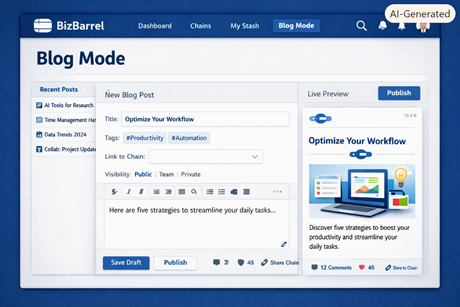
Blog: A members-only app at blog.html for your own blogs and long-form posts — not a mode button in Forge.
Look controls: The grouped pill in the header lets you adjust your workspace.
Left button cycles Display (Standard → High contrast → Comfort).
Center button cycles Theme (light → soft → dark → glass).
Tap ? for a short explanation of how these settings layer together.
Organizer: Parent hub for Calendar (default), Tasks, and Journal. Browse dates, open day details, and launch the mini-apps from the Organizer header.
Sticky notes: Capture quick ideas, expand longer ones with Show more, and use Stick-it to float a note above your workspace.
Messages: Direct messages with other members (the envelope icon in the mode bar when signed in; also available in the account gear menu). Thread titles use each person’s public name — never their email.
Journal: Organizer mini-app for dated notes (floating window, same chrome as Tasks). Open from the Organizer header, Today, or global search. Separate from your Archive library.
Account menu (gear): Shows your public name (not email). Click your name to open your profile page. Includes Settings (platform admins see Admin instead), My replies on forum-enabled pages, and a link to this Help page.
Navigation links: Home, Forge, Forums, Blogs, and Games appear in the top nav bar (same order on mobile Menu). Help is always available in the page footer.
The forums page is separate from the mode bar and lists posts that authors have shared publicly.
Home:forums.php with no topic is a welcome lobby. Guests see a short start list. When you are signed in and have places to resume, that becomes Your recent visits (last 10 in this browser; two rows show, scroll for more). The Public Forums link in the top nav returns to that lobby.
Topics: Each feed is scoped to a topic (for example “Technology” or “Community & Local”). There is no “all topics” firehose once you dive in. On the lobby, pick a room from the grid or the Topics menu.
Sort options:
Newest is the default on every reload. A different sort lasts only for this visit.
You can also sort by trending (relative), top voted, or most replied. Trending scores are compared within the current topic so both small and busy communities surface engaging posts fairly.
Search: Type at least four letters to search every public topic. Choosing a result opens that post in the maximized reader (Restore brings the feed back beside it).
Pagination: Trending shows 10 posts per page; other sorts use a larger page size.
Authors: Posts show each writer’s public name (alias, or first + last). Email is never listed. Meta also shows where the post lives (Topic → subtopic, or the topic alone); Max lens keeps that path on the title tooltip.
Votes and replies: Sign in to upvote/downvote and reply (when comments are unlocked).
Point lists: Short lines in a post that are not full sentences can appear as a bullet list in the reader (same converter as Forge).
View lenses: Browse in Max, Full (default), or Table. Your choice is saved. On the lobby, Max packs Live and Rooms tighter; Table turns Live into rows only — Welcome and Rooms stay as cards and tiles. In a topic feed, Table is a comparison list (compact admin category picker when you select a row). Full keeps the discussion pane beside the thread; Maximize is a separate reader control.
Lobby windows (desktop): Welcome/Yours, Live, and Rooms each have Min / Med / Max. Med is the default stacked lobby. Min collapses a pane to its title; Max stretches it. Below Max you can drag a pane to place it — the arrangement is remembered for the tab, and signed-in members keep it in their account.
Long threads: The discussion pane keeps a quiet sense of place — warmth on the passage you are in, a room-hue edge, and a return dot when the original post has scrolled away.
Unread replies: When you have replies waiting, a banner links to My replies (also available in the account menu). The lobby list does not mark those replies as read.
Moderation & ownership: Authors and admins can hide posts, lock replies, pin threads, or adjust category/topic settings where permissions allow.
SEO: A link to a public post — share, email, notification, or a short ?postid= / ?get= address — opens in the maximized reader. The address is forums.php?view=max&postid=note-…&page=1&topic=…&subtopic=…&sort=newest&read=max. Side-by-side (view=normal) is kept when you chose Restore.
Dashboard Mode
Your day to scan and act — not where you build libraries.
Move between days with previous / next / today or the date picker. The header shows a subtle loading state while the day refreshes.
Section cards cover Achievements, Combined Timeline, Journal, Stickies, Tasks, Archive notes, Research, and Private Forums for the selected date.
Cards get a light accent cue when that section has activity that day, respecting your theme and display preset.
Each card has an Open chip. If there’s nothing for that day, it opens the app empty; if there are items, it expands a strip of tiles below the grid.
Drag cards to reorder the grid; minimize cards you want out of the way.
Use jump links at the top to scroll to a section.
Refresh reloads the day from the server and Organizer APIs.
Archive Mode
Your long-term note and knowledge library.
Create and organize archives, categories, and notes.
Write rich-text notes with formatting tools.
Search archive content and filter by persona.
Share notes with another member by alias or email. Recipients see them under Shares in their own Archive tree. Comments stay in the right-pane meta.
Threaded comments and reply-op snapshot tools where enabled.
Switch between Tree, Book, Drawer, and Cabinet lenses.
Resizable left tree; details column for metadata, PDF export, stash, and comments.
Research Mode
A topic-driven workspace for study and reference — a slim sibling to Archive, kept separate from your main library.
Build Topic → Subtopic → Note hierarchies stored on your account.
Open notes in read-only view; use Edit to make changes, then Save to persist.
Use Find in note from the toolbar to search within the current note.
Breadcrumb and Details panel provide context and metadata.
Details column: download a PDF of the open note or every note under the selected subtopic/topic; Stash Box to put away owned selections.
Sidebar lenses match Archive: Tree, Book, Drawer, Cabinet.
In Tree view, expand/collapse with ▸/▾ or by clicking the row; your current selection stays expanded.
In Cabinet, drag topic blocks to reorder; subtopics act as shelves and notes as cards.
Create, rename (F2), and delete nodes from sidebar actions.
Rich text tools include headings, lists, color, highlights, and internal note links.
Global search runs one query across archive, research, and journal.
Share topics, subtopics, or notes with another member by alias or email. Recipients see them under Shares in their own Research tree.
Shared Mode
An inbox-style feed for content you shared with another member — or that they shared with you.
Lists archive notes, research notes, and photo albums in one reader. Recipients also see those items under Shares in the matching mode tree.
Filter by direction (All, Shared by me, Shared with me) or author alias.
Sort by newest, trending, top voted, or most replied; switch feed lenses (Max, Full, Table).
Open a post to read comments; use Open in … to edit in its home mode.
The discussion pane keeps a quiet sense of place: a room-hue spine, a soft top-edge when the original post is offscreen, and a warm return dot after a deep scroll.
My replies lists discussions where you posted a reply.
Private Forums Mode
Your private sandbox for forum-style posts — organize by topic and publish when ready.
Three-pane layout: topic and lens header, private post feed, and an optional discussion reader.
Create topics, filter by topic, and manage My topics for your private boards.
Compose with New post; drafts stay private until you publish to Public Forums.
Full forum tools: votes, replies, sort options, feed lenses (Max, Full, Table), and My replies.
Search looks across your private topics (four letters or more). A result opens in the maximized reader.
The discussion pane keeps a quiet sense of place: a room-hue spine, a soft top-edge when the original post is offscreen, and a warm return dot after a deep scroll.
Drafts stay private until you publish to Public Forums.
Photo Album Mode
A visual knowledge archive with albums, optional sub-albums, and photos as tree nodes.
Tree, Book, Drawer, and Cabinet lenses; grid, masonry, timeline, map, and compare views.
+ Photo works with an album or sub-album selected — or with nothing selected (creates/uses a General album and places photos there as direct children).
Captions, tags, GPS map, people tags, map pin clusters, annotations, version history, and Maximize for a full-viewport reader.
Build stories and slideshows; use Flip-View, batch edit, and Export video (capacity meter in the details pane).
Create album / sub-album can batch-add photos after save on desktop (wider than 720px).
Organizer
Parent of Calendar, Tasks, and Journal — opens on the month grid by default.
Open from the landing Operate → Organizer link, the Organizer icon on the Classic mode bar, or Today → Calendar on the BB-Lite card home. In BB-Lite that landing link opens the Today surface (calendar, journal, and tasks).
Calendar is the default view: month grid with activity icons, then day drilldown for archive/threads/stickies.
Header buttons open the Journal and Tasks mini-apps for the selected day.
Tasks is no longer launched from Calendar day drilldown — use the header Tasks button.
Optional background image (saved to your account when signed in).
Journal
Dated thoughts for today — separate from your long-term Archive library.
Open from the Organizer header (Journal) or the Dashboard journal card.
Browse notes by day with previous / next / Today.
Create, edit, save, and delete dated journal entries.
Rich-text formatting — headings, lists, color, and highlight.
Journal entries are not Archive nodes — use Archive for long-term library work.
Tasks
Organizer mini-app for day-scoped to-dos — Journal-style floating window.
Open from the Organizer header (Tasks) or the Dashboard tasks card.
Move between days with ← / → / Today — same day nav as Journal.
Pick a title, optional details, and one-time or monthly recurrence.
Mark tasks done, edit, or delete from the list; activity icons still appear on the Calendar grid.
Sticky Notes
Quick notes you can pin, float, and check off.
Open from the pin icon in the mode bar or the Dashboard stickies card.
Create a note with a title and optional longer text.
Mark notes complete or dismiss them from the list.
Stick-it floats a note above the app — drag the header to move, grab the corner to resize.
Show more expands long notes in the list.
Games Mode
Gameramma — BB’s cozy corner for cards, dice, and classic play.
Open from the main nav or go directly to game.html.
Tables: cribbage, euchre, farkle, yahtzee, war, poker, Texas Hold'em, rummy, backgammon, checkers, chess, mahjong, and sudoku.
Each table opens on a load-in panel (hub graphic, seats, Instructions, New table). War’s scorecard shows elapsed time and an estimate of remaining clashes.
Create a table, fill a bot or copy the invite URL, then start a round. BizBarrel does not email invites. Visitors play bots as much as they want and cannot send invites; sharing a visitor table URL sends others home. A live invite from a signed-in member who is still at the table lets a guest sit and play.
Public play follows the admin Game gate. Admins can close the whole hub or any single table. A closed hub adds that updates are underway; a closed table is hidden from the public list. Admins can still copy an invite URL from a live admin table while the hub is closed.
Signed-in members can invite friends; scores stay with your account.
Your members-only writing space — blogs and posts separate from Archive notes and Forge modes.
Guests see a welcome page only. Sign in to read or write.
Signed-in members can View blogs when any exist — their own, plus blogs others have listed for members.
Create one or more blogs (title, URL slug, optional tagline). Owners see links to their blogs on the landing page.
Write and publish rich-text posts; keep drafts private until you go live.
Follow blogs you care about; upvote or downvote a published post.
Switch the post lens to Flip-View for a page-turn browse of posts (same name as Photo Album), or stay on List.
Add an About page for your blog; manage posts from your owner tools.
Open a blog via blog.html?blog=your-slug (and a post slug when reading a single entry).
Members can own multiple blogs; Founding Members have no create cap.
Budget
Under development. Home and ledger accounting is not a public page and is not a button on the Forge mode bar.
Platform admins can preview the current ledger from Forge Dev.
That preview covers accounts and day-to-day home accounting.
Envelopes and Tax lenses are not part of Budget yet.
Search and other utilities
Global search helps you find notes and content across your permitted archives and modes.
AI summaries / Q&A — not available in the product yet.
Inspect in Forge highlights controls and opens the same feature guides linked from the mode cards above.
Tips for New Users
Start in Today for your current day — open The day, then use chips to expand into browsable strips without leaving the page. The Achievements strip lists every badge you have earned.
Use Archive for long-term notes; open Journal from Today or the Organizer for dated entries.
Browse Public Forums by topic; trending is tuned for the activity level of each topic. Search (four letters or more) opens a match in the maximized reader.
Use Research for structured topic → subtopic → note work.
Use Shared to review anything collaborators or forums have sent your way.
Use Private Forums to draft forum posts by topic, then publish to Public Forums when ready.
Use Photo Album for visual archives — + Photo works without picking a folder first (saves to General); pair with Shared when albums are shared with you.
On a phone, the home page header shows Sign In only; Forge / Forums / Blog / Games links are in the page body. In Forge companion mode the bottom bar is Today · Archive · Photos · More. Games stays in the main nav.
If you leave a compose or edit with unsaved changes, BizBarrel asks Leave without saving? (Stay or Leave). Closing the browser tab still uses the browser’s own prompt.
Try combining Display and Theme settings for long reading sessions — Comfort + glass is a popular combo.